Understanding Cura Settings for TEVO Tarantula
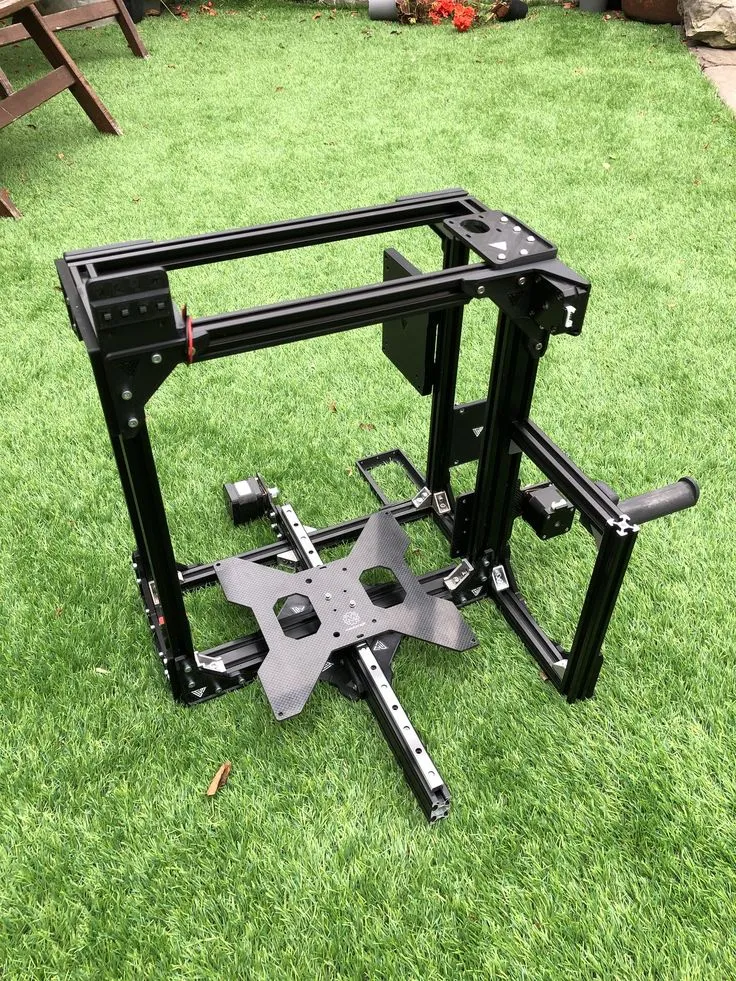
The TEVO Tarantula is a popular and affordable 3D printer, known for its versatility and ease of use. Achieving high-quality prints with the TEVO Tarantula requires a good understanding of Cura settings, a powerful and widely-used slicing software. This guide provides a quick overview of the essential Cura settings to get you started and optimize your prints. Correctly configured settings are crucial for everything from print quality and dimensional accuracy to the overall success of your 3D printing projects. Understanding the relationship between these settings and their impact on the final print is key to unlocking the full potential of your TEVO Tarantula. Fine-tuning these settings allows you to adapt to different filaments, print speeds, and desired levels of detail. By mastering these settings, you can create everything from functional prototypes to intricate models.
Key Settings Explained
Cura offers a vast array of settings, but some are more critical than others for achieving excellent results. Understanding these core settings is the foundation for successful 3D printing. Focusing on these key parameters will allow you to quickly improve your prints and minimize common issues. The following sections delve into the most important settings, explaining their functions and how they impact your prints.
Print Speed and Temperature

Print speed and temperature are intrinsically linked and significantly affect print quality. The optimal print speed depends on your filament type and desired print quality. Generally, slower speeds (e.g., 40-60 mm/s for PLA) produce better quality, particularly for intricate details. However, a higher speed can be chosen for parts where speed is more important than fine detail. Temperature should be set according to the filament manufacturer’s recommendations. Too low a temperature can cause under-extrusion, while too high can lead to stringing and oozing. Experiment with temperature within the recommended range for your filament, making small adjustments to find the sweet spot that yields the best results for your TEVO Tarantula and particular filament. Remember to always consider the manufacturer’s recommended temperature range for your specific filament to avoid issues.
Layer Height and Quality
Layer height directly influences the print’s resolution and detail. A smaller layer height (e.g., 0.1 mm) results in finer details and smoother surfaces but increases print time. Larger layer heights (e.g., 0.2-0.3 mm) print faster but may show visible layer lines. The quality of your print is directly affected by the layer height chosen. A balance between print quality and speed is crucial. For detailed models, use a smaller layer height. For functional parts where speed is more important, a larger layer height might be acceptable. Choosing the right layer height depends on the specific model’s requirements. Experiment to find what works best for your desired level of detail and print speed, keeping in mind the capabilities of your TEVO Tarantula and the material you are using. Adjusting the layer height and testing various iterations is often necessary for the ideal result.
Infill Settings
Infill determines the internal structure of your print, affecting its strength, material usage, and print time. The infill percentage (e.g., 20-50%) controls the density of the internal structure. Higher infill percentages increase strength but also increase material consumption and print time. The infill pattern also matters. Popular patterns include grid, lines, and triangles, each with varying properties. A higher infill density will result in a stronger part, but might be unnecessary for non-structural components. Consider the intended use of the printed part to determine the appropriate infill setting. Experiment with various patterns to find the right balance of strength, weight, and print time for your specific application. The best choice depends on your project’s requirements; consider the load-bearing needs and overall design.
Adhesion and Support

Proper bed adhesion is essential for preventing warping and ensuring successful prints. Using a heated bed, applying an adhesive like glue stick or painter’s tape, and adjusting the initial layer height are common methods to improve adhesion. Support structures are necessary for printing overhangs and complex geometries. Cura offers different support structure options, including lines, zig-zags, and tree supports. Proper support settings depend on the complexity of your model and the material. Adjust the support angle, density, and interface layers to achieve a balance between supporting the model and minimizing the effort required to remove the supports after printing. Ensuring the first layer adheres properly is critical for the rest of the print; experimentation is common to achieving this.
Material Settings
Different filaments require different settings. Understanding the recommended settings for each material is crucial. The following sections cover some common filaments and their settings for your TEVO Tarantula.
PLA
PLA (Polylactic Acid) is a popular and beginner-friendly filament. It’s easy to print with, biodegradable, and produces minimal odor. Recommended settings include a nozzle temperature of 190-220°C, a bed temperature of 50-60°C (or no heat for some PLA), and a print speed of 40-60 mm/s. PLA is generally forgiving, making it great for beginners. Adhesion can be improved with a glue stick or painter’s tape. It is generally best to start at the low end of the temperature range and increase it in increments if you are experiencing extrusion issues. Be aware that PLA can soften in high-temperature environments.
ABS
ABS (Acrylonitrile Butadiene Styrene) is a more durable and heat-resistant filament than PLA. It requires a heated bed and a well-ventilated area due to its fumes. Recommended settings include a nozzle temperature of 230-250°C, a bed temperature of 80-110°C, and a print speed of 30-50 mm/s. Enclosures can also help to maintain a consistent temperature. ABS tends to warp more easily than PLA, so good bed adhesion is very important. Make sure to calibrate the bed level, and consider using an enclosure to maintain a more stable printing environment.
PETG
PETG (Polyethylene Terephthalate Glycol-modified) offers a good balance of strength, flexibility, and ease of printing. It bridges the gap between PLA and ABS. Recommended settings include a nozzle temperature of 220-250°C, a bed temperature of 70-90°C, and a print speed of 40-60 mm/s. PETG typically has good layer adhesion and is less prone to warping than ABS. PETG is also known to be relatively resistant to temperature changes and impact, making it a popular choice. PETG is a great choice for functional parts.
Advanced Settings for Optimization
Once you are comfortable with the basic settings, you can explore more advanced options to further optimize your prints. These settings can fine-tune aspects like print quality, dimensional accuracy, and material usage.
Retraction Settings

Retraction is the process of pulling the filament back slightly to prevent stringing and oozing. Retraction settings include retraction distance and retraction speed. Adjust these settings based on your filament and printer configuration. Too much retraction can cause under-extrusion, while too little will lead to stringing. A good starting point is a retraction distance of 4-6 mm and a retraction speed of 25-45 mm/s. Fine-tuning these settings is usually needed to get the best results. Experiment and test different settings with a stringing test model.
Cooling Settings
Cooling plays a vital role in print quality, especially for overhangs and small details. Adjust fan speed settings to optimize cooling. Too much cooling can cause warping, while too little can lead to drooping or poor bridging. The ideal cooling settings depend on the filament type and the specific model. Start with the manufacturer’s recommendations and make small adjustments as needed. Observe your prints and make small changes to the fan speed settings to optimize cooling, especially for overhangs. It’s often necessary to test different cooling configurations to find what works best.
Flow Rate Calibration
Flow rate calibration ensures the correct amount of filament is extruded, influencing dimensional accuracy and print quality. Calibrating your flow rate involves measuring the extruded filament and adjusting the flow rate setting in Cura. Proper flow rate will make your prints stronger and more dimensionally accurate. If the flow rate is too low, your prints will be weak; too high, and you will have over-extrusion. Calibrating the flow rate will allow you to fine-tune your printer and ensure precise and repeatable results.
Troubleshooting Common Issues

Even with optimized Cura settings, you may encounter printing problems. Understanding common issues and their solutions is essential for successful 3D printing.
Warping and Bed Adhesion
Warping is a common issue, where the corners of the print lift from the bed. Improve bed adhesion by using a heated bed, applying an adhesive like glue stick or painter’s tape, and ensuring the bed is properly leveled. Adjust the bed temperature appropriately for your filament type. For ABS, enclosures are recommended. Clean the build plate and ensure it is level to avoid warping. Warping often results from the plastic cooling and contracting unevenly, so focusing on adhesion is the key step.
Stringing and Oozing
Stringing occurs when thin strands of filament are left between parts of the print. Optimize retraction settings (distance and speed), and lower the nozzle temperature if needed. Stringing is typically caused by filament oozing out of the nozzle while the printer is traveling. A proper retraction will pull the filament back from the nozzle, preventing it from oozing. Temperature and retraction settings often need to be balanced to achieve optimal results. Experiment with different retraction settings and temperature to solve the problem. Slow down the print speed if the problems persists.
Layer Shifting

Layer shifting is when the layers of the print are misaligned. Check the belt tension on your printer’s X and Y axes. Ensure the motor pulleys are securely attached to the motor shafts. Layer shifting can happen due to missed steps on the stepper motors, often due to loose belts or obstructions. Loose belts are a common cause of layer shifting. Tighten the belts and make sure there are no obstructions in the printer’s path. Check the current to the stepper motors.